
The audio player
The Audio Player component allows you to embed an audio file on your WebAcappella website, enabling visitors to listen to audio directly from their browser.
Component overview
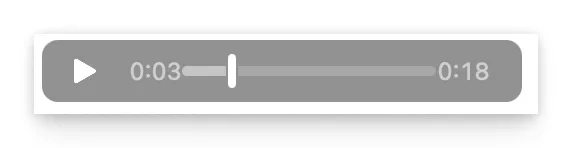
The Audio Player is a component that allows you to play MP3 audio files, ensuring compatibility with most modern browsers (Chrome, Firefox, Edge, Safari, etc.).
It displays a player with the usual controls: - Play/Pause - Progress bar - Volume control
The player adapts to different devices (computer, tablet, mobile) to ensure optimal listening.
Adding the component
To add an audio player to your site:
- Open your WebAcappella project.
- Go to the page where you want to insert the audio.
- Click Add Component and select Audio Player.
- Upload an MP3 file or provide a link to an external audio source.
- Place the player where you want it on the page.
Configuration and customization
Once the player has been added, several options are available:
- Audio source: Add an MP3 file or enter an external URL.
- Player display: Change the width of the player to fit the design of the site.
- Autoplay:
- ⚠ Warning: Autoplay is blocked by default on many browsers to avoid inconveniencing users.
- To get around this restriction, it is advisable to display a button explicitly asking the user to start playback.
- Loop playback: Allows the file to be played continuously.
Compatibility and recommendations
- Recommended MP3 format: The MP3 format is universally supported by all modern browsers.
- Avoid autoplay: Browsers often block automatic playback. It is better to provide a clear "Listen" button.
- File size: Optimize the size of MP3 files to improve page loading time.
- Mobile compatibility: Test your player on different devices to check usability.
Best practices
- Add a short description of the audio to inform the user of the content they are about to listen to.
- Make sure the audio does not start playing unexpectedly on mobile devices.
- Offer an alternative in case of incompatibility (e.g., a link to download the MP3 file).
Troubleshooting
If the player is not working properly:
- Make sure the MP3 file is downloaded and accessible.
- Check that the audio file is not corrupted.
- Test with another browser to check for possible incompatibility.
By following these recommendations, you can ensure optimal audio integration on your WebAcappella website.