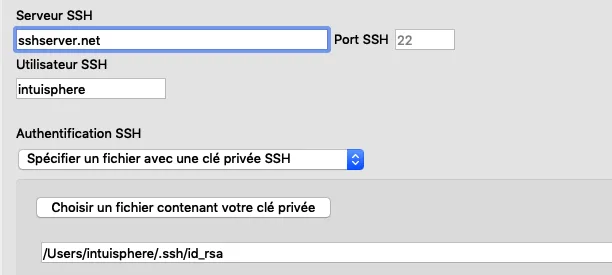
SSH synchronization
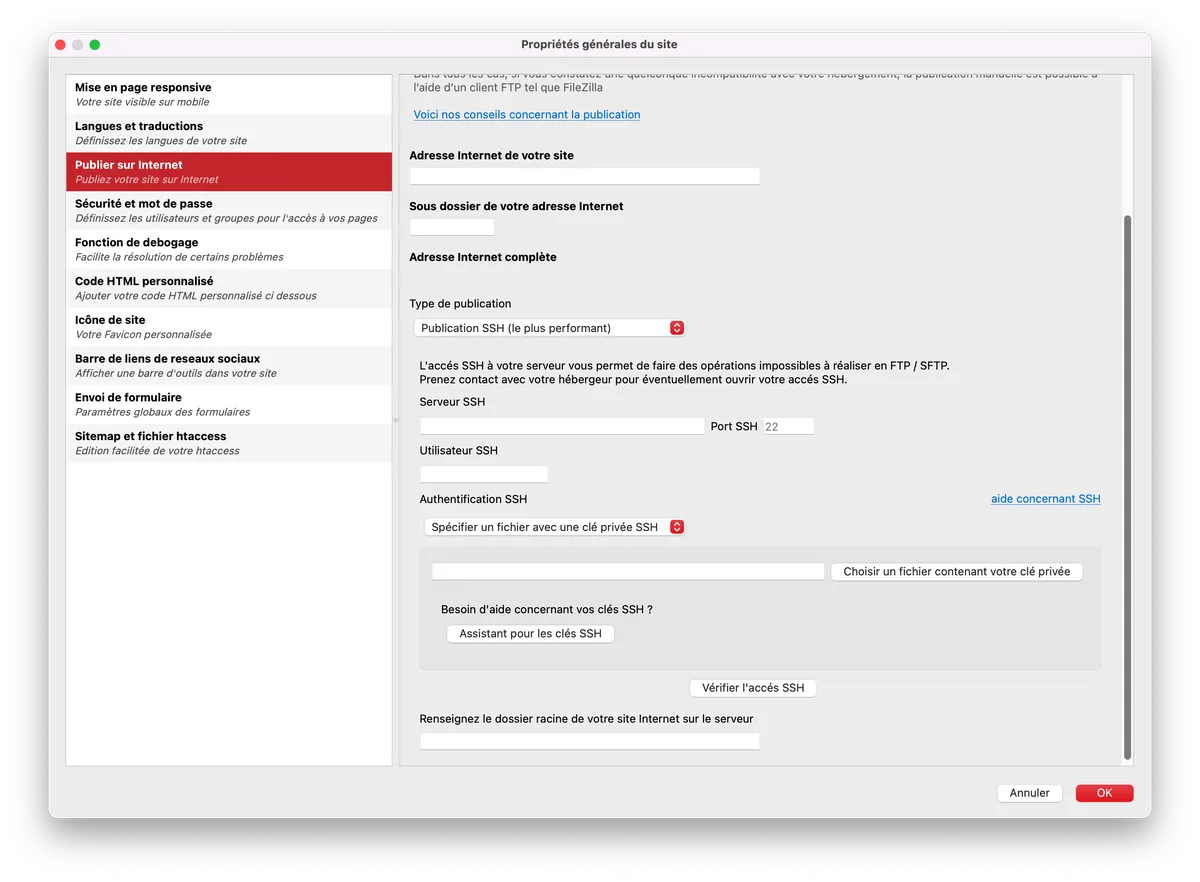
On the home page, click the "New connection" button.
The connection settings are fairly standard. The only requirement is that you have SSH access to your server. Not all hosting providers offer this.
Authentication is based on the public key/private key principle.
Configuring your SSH connection from your cPanel
If your hosting provider offers SSH access and a cPanel-type interface, configuring your connection will be very simple.
- Log in to your cPanel interface.
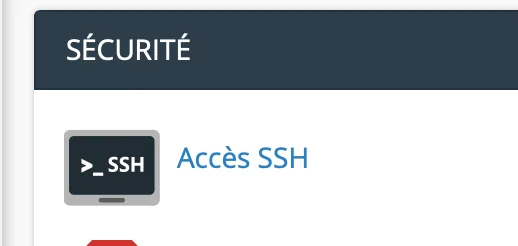
- In the "Security" section, click on "SSH Keys" or "SSH Key Manager" (the title may vary depending on the version of cPanel).

- On the next page, click "Generate Key."

- On the next page, choose the password associated with your private key (passphrase).
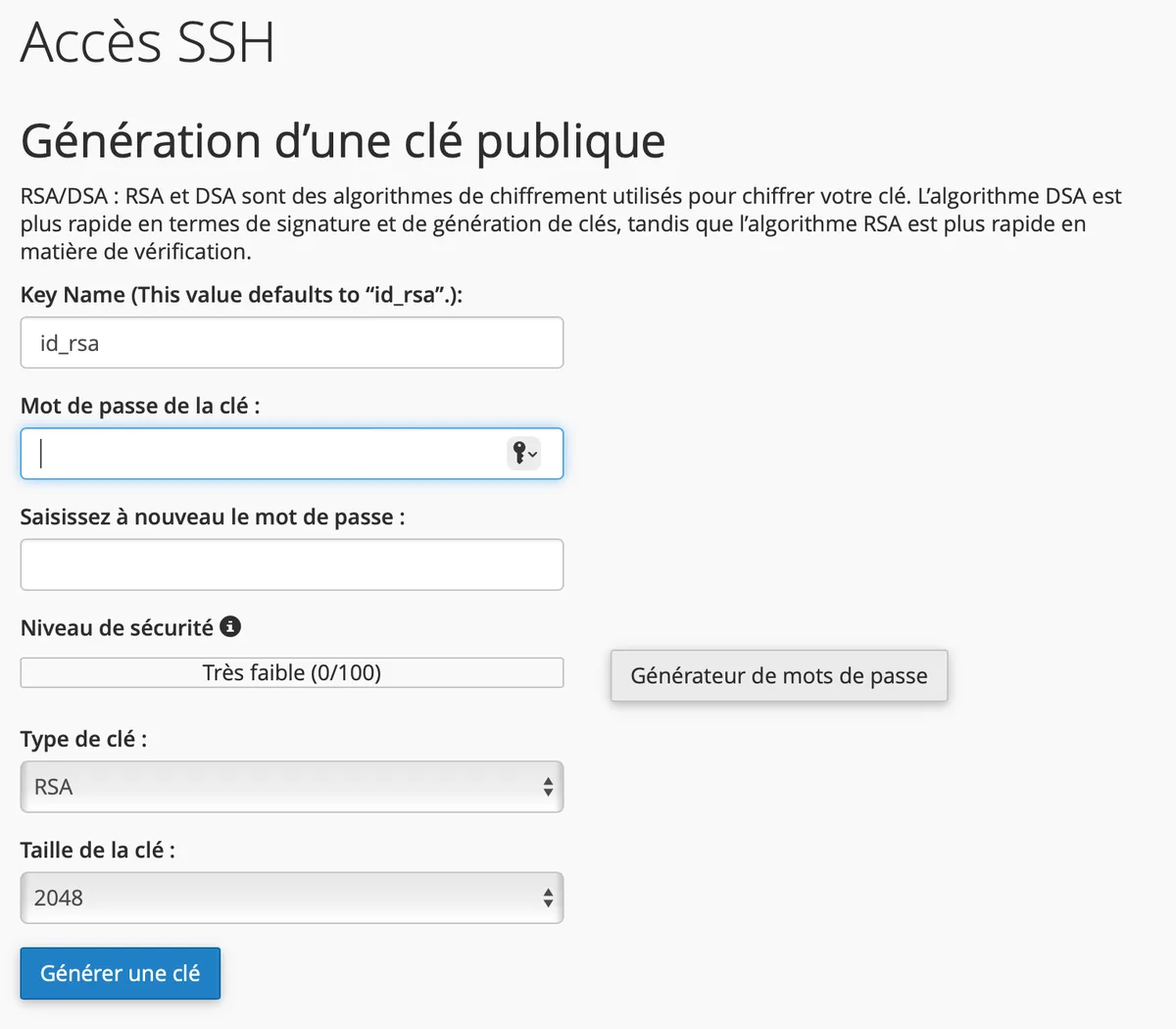
- Click on "Generate" or "Validate."
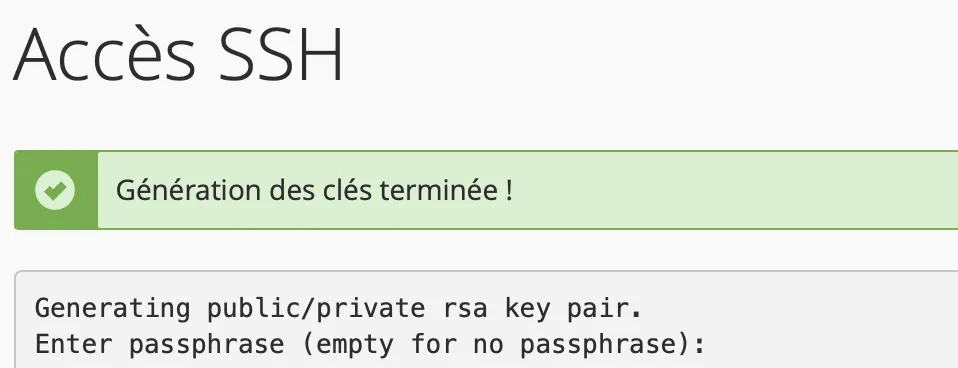
- Return to your list of keys.
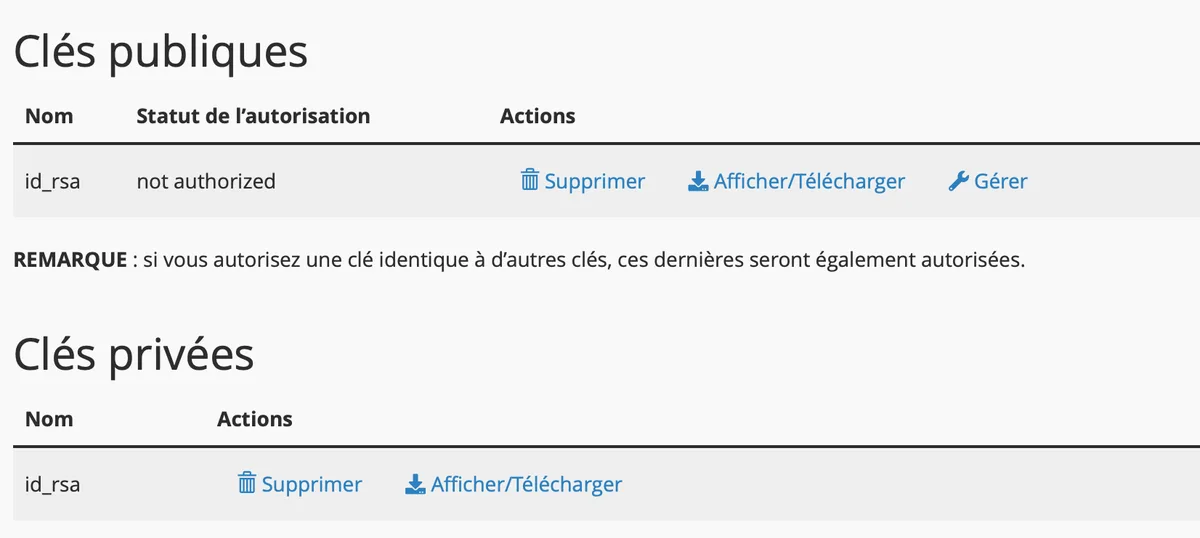
- Authorize the key marked "not authorized" by clicking on the "manage" link.

- Download your private key by clicking on the 'download' link. Save the file in a secure location on your computer.
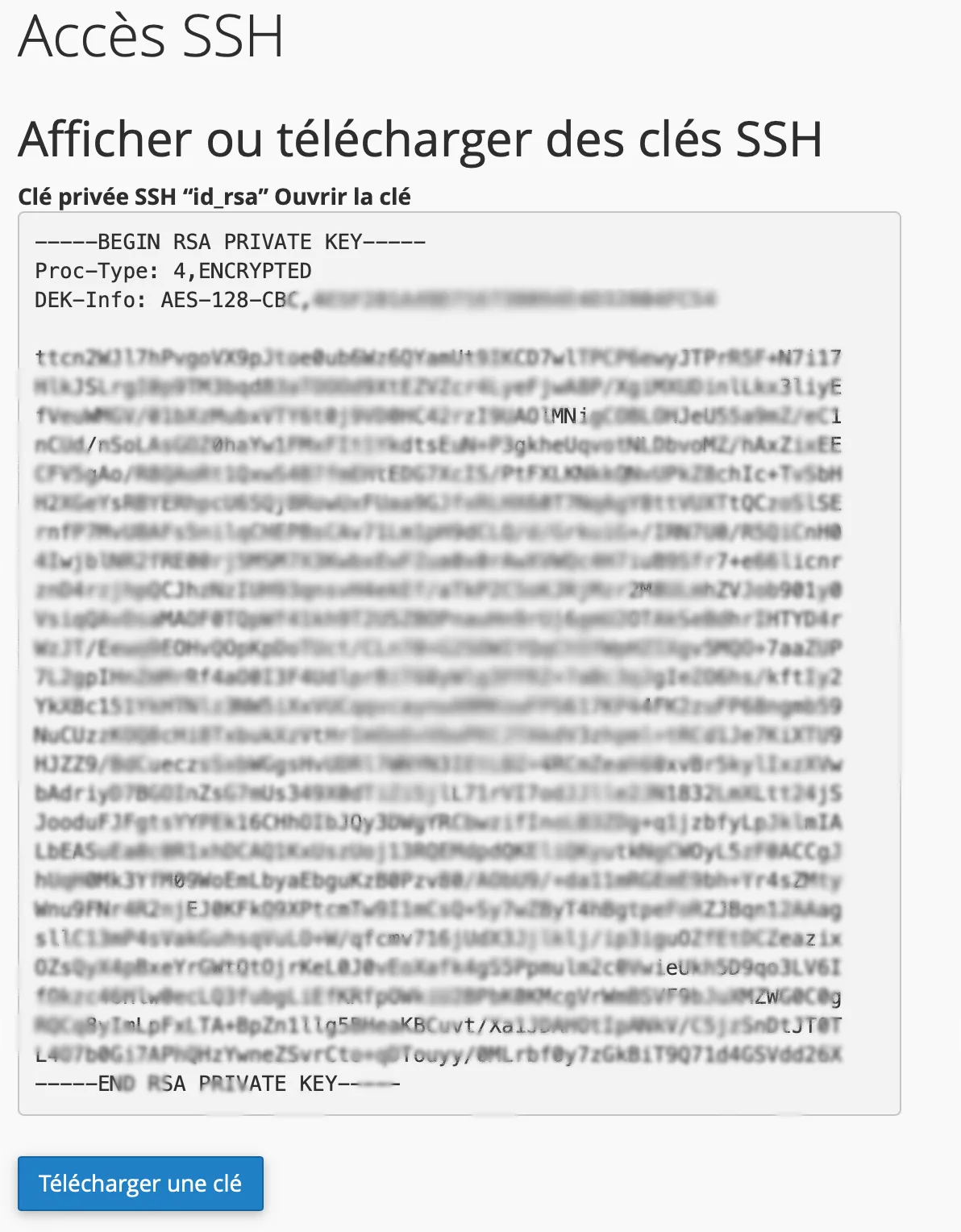
- Enter your private key in the settings. The private key you downloaded earlier will allow you to connect to your server automatically and securely.