Element tree (right panel)
In WebAcappella, the right-hand panel is always visible and plays an essential role in managing page elements. It offers a complete hierarchical view of the page structure, and makes it easy to interact with each component.
Right panel presentation
The right-hand panel is divided into several sections, but the most important for editing is the element tree.
This tree structure displays all page elements in an organized list, synchronized with the work plan.
It allows you to :
✔ View the complete hierarchy of elements (boxes, rows, columns, components).
✔ Quickly select an item, even if it’s hard to reach on the worktop.
✔ Move elements in the hierarchy to reorganize the layout.
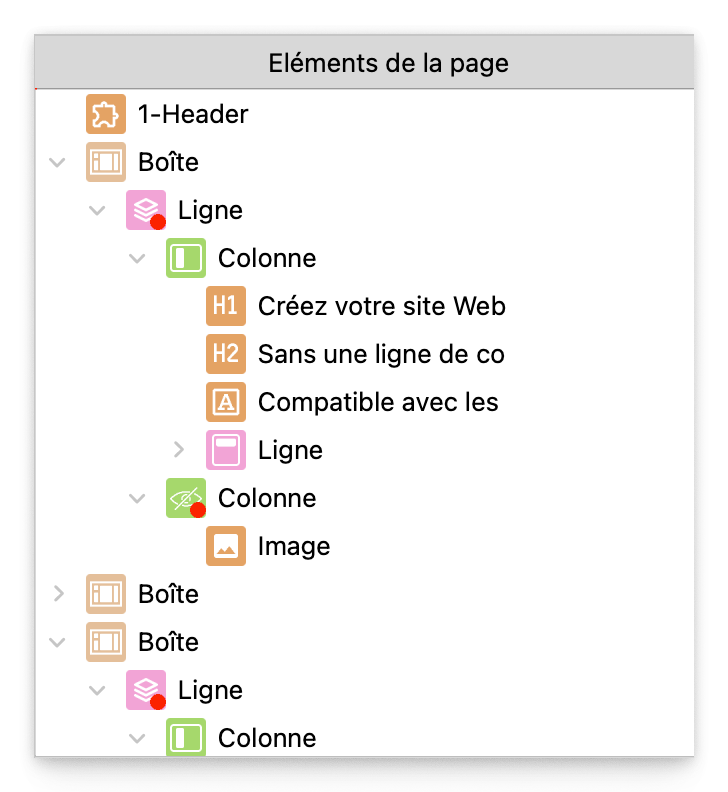
Select an item via the tree structure
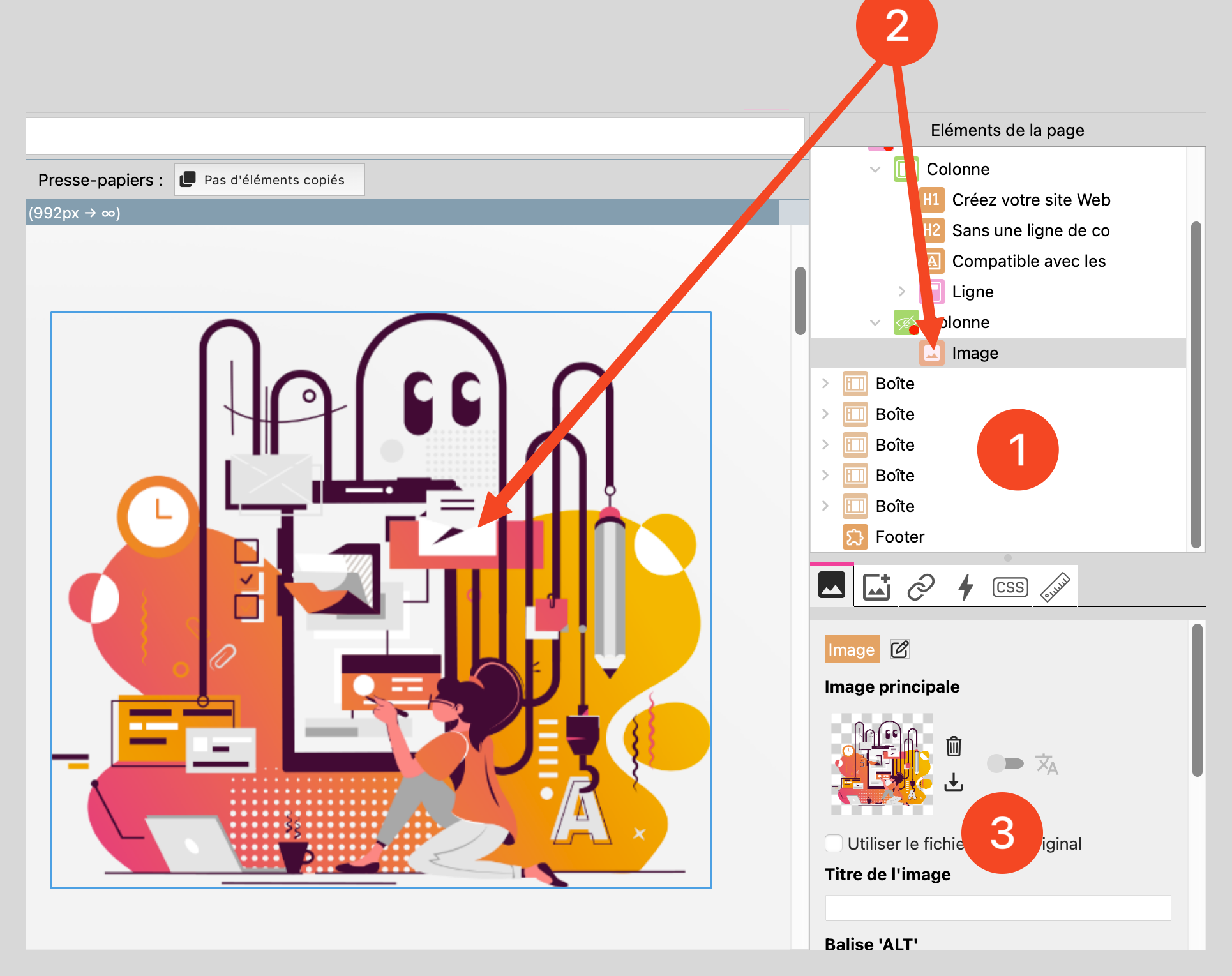
Locate the desired item in the tree structure.
Click on the element: it is automatically selected on the work plan.
The selected element is displayed with its properties, allowing rapid modification.
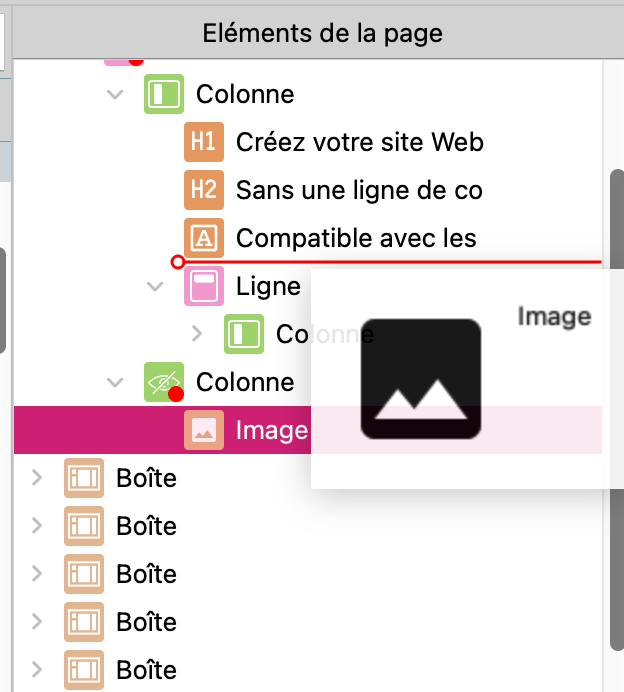
Move an element in the tree structure
Click and hold on an element.
Drag it to a new position in the hierarchy.
Release to reposition the element in the page structure.
Warning
Please note: Some elements cannot be moved freely. For example, a column must always be placed inside a row.
Advantages of using the right-hand panel
- ✔ More precise selectionIdeal for catching overlapping elements
or difficult to click on the work surface.
✔ Clear hierarchical view: Provides a structured organization of the page.
- ✔ Time savingNo need to zoom in or search for a hidden element,
everything is clearly listed.
- ✔ Easy to moveReorganizing elements is faster
than handling them directly on the work surface.
Best practices
✔ Use the tree structure to navigate quickly between items.
✔ Move elements carefully to avoid disorganizing the layout.
✔ Alternate between work plan and tree view for smoother editing.