Normal mode / column mode
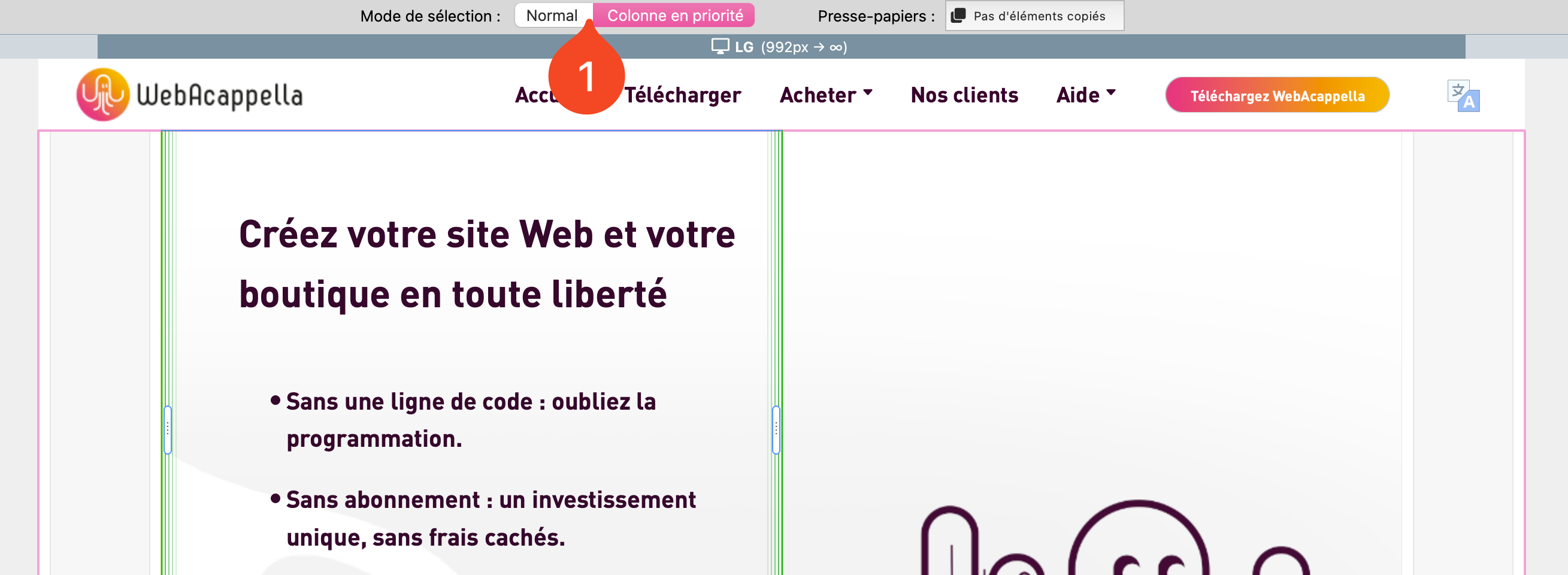
In WebAcappella, elements can be edited in two distinct modes, accessible via a switch above the work surface:
Normal mode (default)
Column mode
These modes influence the way elements can be selected and manipulated on the page.
Switching between modes
There are two ways to switch between these modes:
✔ Via the switch above the worktop :
Locate the switch.
Click to toggle between normal mode and column mode.
✔ Via a keyboard shortcut :
MacOS: Press the Option key.
Windows: Press the Alt key.
Normal mode (default)
Normal mode allows free selection of all elements with the mouse:
✔ Boxes ✔ Rows ✔ Columns ✔ Components in columns (text, images, buttons, etc.)
This mode is ideal for fast, intuitive editing.
Column mode
In column mode, selection is limited to columns only. This mode is useful when columns are difficult to select in normal mode, especially if they are filled with many elements.
✔ Allows columns to be resized and organized without interfering with their contents. ✔ Avoids accidentally selecting a row or box instead of a column.
Best practices
✔ Use column mode when it’s difficult to select a column in normal mode. ✔ Take advantage of the tree structure to organize and manipulate items with greater precision. ✔ Use the keyboard shortcut (Option on MacOS / Alt on Windows) to quickly switch between modes. ✔ Return to normal mode after editing columns to facilitate placement of other elements.