
That’s it: WebAcappella Fusion Service Pack 4 is available as of today, Monday, May 18, 2026. Following the preview of new features and the release date announcement, it’s time to dive into the new features: for each one, what it does, where to find it in the editor, and what it actually changes. We’ll start with the three flagship new features, then review everything else.
All new WebAcappella Fusion licenses include SP4 by default. To update an existing license, go to the end of the article: the details are provided there.
SP4 does not affect your existing sites. Your sites continue to function exactly as before. The new features are added to your toolkit—you use them when you decide, on the projects you choose.
The completely redesigned responsive menu
The navigation menu has long been a sticking point in WebAcappella Fusion: unintuitive settings, mobile behavior that was hard to control. SP4 starts from scratch with a menu designed for today’s mobile use cases—touch navigation, desktop/mobile switching, consolidated and easy-to-read settings, without custom CSS.
Where to find it. Everything is handled in the Menu component settings: select your existing menu or add one from the library. The responsive options are now all in one place.
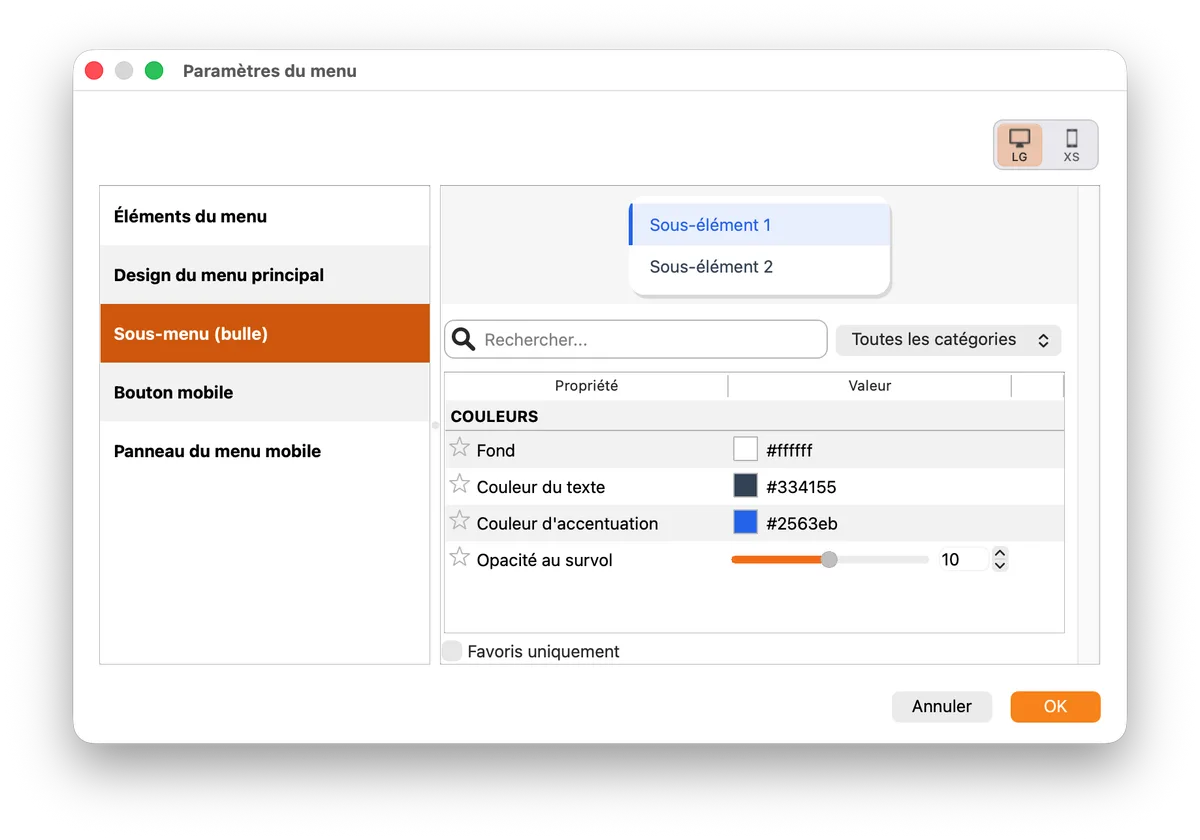
- Select the Menu component on your page to view its settings.
- Adjust the appearance of the desktop version: font, colors, spacing.
- Define the behavior of the mobile version and the breakpoint between the two views.
- Preview the mobile view without leaving the editor, then make adjustments.
Setup is simpler, and the mobile display is predictable. The software’s long-standing pain point has finally been resolved.
Promotions on select products
The second major new feature, available only to sites with an e-commerce store: promotion management. Until now, offering a discount required changing the price of each product one by one, then resetting everything after the promotion. With more than a few items, this quickly becomes unmanageable.
What is it for? SP4 adds a true promotions system to the e-commerce component. You select one or more products, apply a discount, and that’s it. The original price remains in the database: the promotion is a layer on top, which you can enable or disable with a single click, without ever touching the product page.
Where to find it. In your store management, the product list now supports multiple selections. You create the promotion based on this selection.
- Open the product management section of your e-commerce component.
- Select the products included in the promotion (multiple selection).
- Choose the discount type: percentage or fixed amount.
- Activate the promotion. To end it, simply deactivate it—the original prices will automatically return.
A native display for visitors
No graphic design work is required. On the store, the display follows standard e-commerce conventions: strikethrough original price, highlighted promotional price, and discount badge on the product thumbnail. The badge is customizable—“20% off,” “€10 off,” or any text of your choice. Promotions integrate into the existing checkout flow: list page, product page, and cart.
Real-world use cases
- Sales: select the relevant items, apply the discount, and deactivate the promotion at the end of the period.
- Clearance: Target end-of-line items specifically, without affecting the rest of the catalog.
- Flash sales: 15% off for a weekend, back to normal on Monday morning, all in a single step.
- Black Friday and special promotions: prepare the selection in advance, activate it on the day.
Since the original price is never overwritten, you can prepare multiple promotions and activate them at the right time, without risk to your catalog.
The Gradient Shape Divider
Third major new feature: the Shape Divider. Shaped dividers—waves, curves, diagonals, triangles—are everywhere on modern websites. They connect two sections of different colors without a jarring break. Until now, creating them in WebAcappella Fusion often required custom CSS.
What it does. SP4 includes a visual Shape Divider editor. You choose a shape, apply a gradient, and get a smooth transition between two sections—the “2026 design” effect in two clicks.
Where to find it. The editor is built directly into the box settings. No components to add: select a box, open its settings, and activate a Shape Divider at the top, bottom, or on both sides.
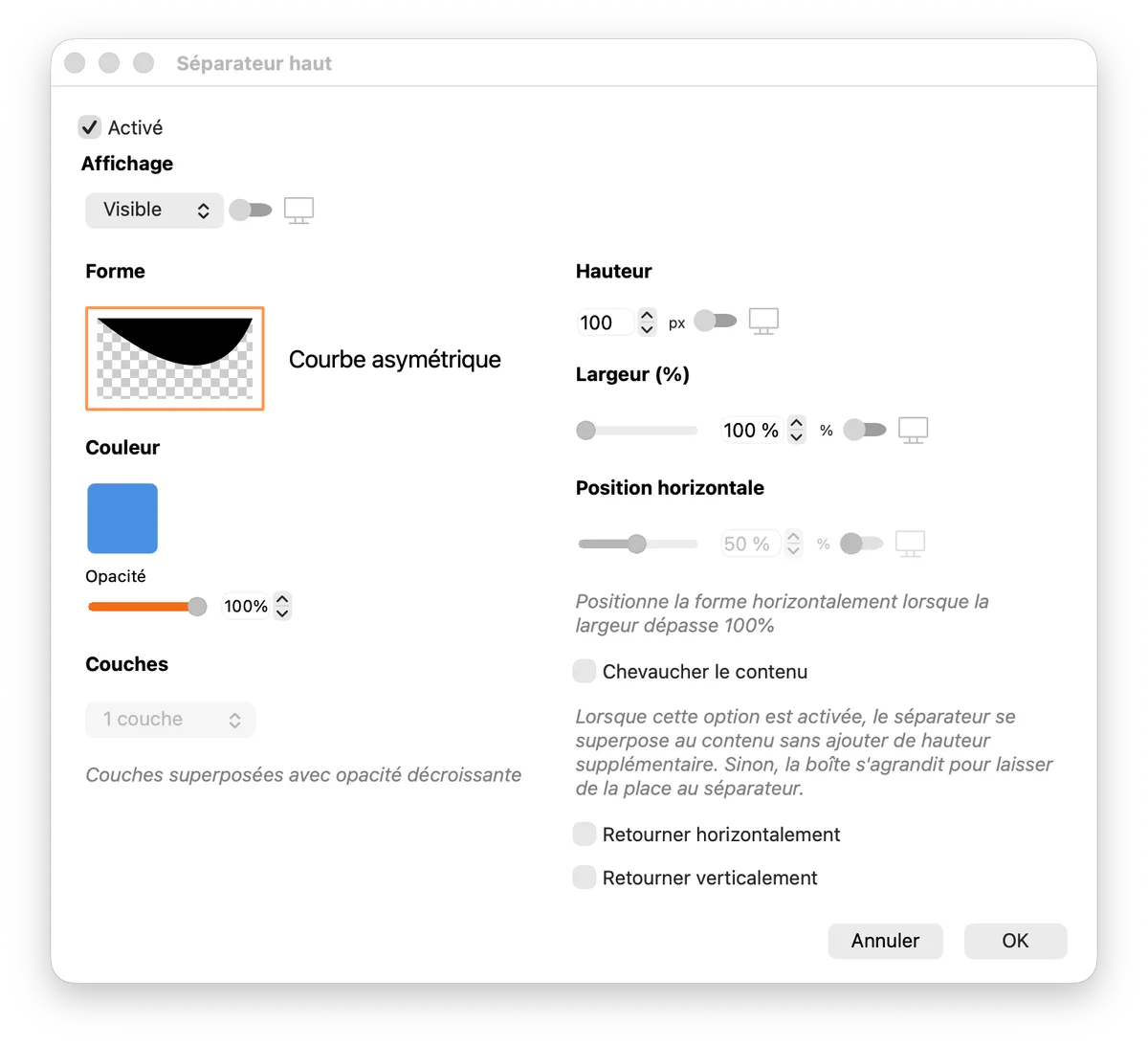
- Select the box to which you want to add a divider and open its settings.
- Enable a Shape Divider, then choose the shape: wave, curve, diagonal, or triangle.
- Adjust its height and orientation.
- Customize the shape with up to three gradient zones, with a real-time preview.
The benefit. You create rich color transitions—from soft two-tone gradients to multicolored effects—without writing a single line of CSS. And since the editor is part of the box settings, the separation remains consistent with the rest of your layout.
Also in SP4
These three flagship new features aren’t the only ones. SP4 also brings new containers, new components, a library of ready-to-use sections, and a welcome improvement to the media library. Here’s the gist—each one is worth trying out on a real project.
Two new containers
- Grid Container: perfectly even columns and rows. The right tool for galleries, team grids, or testimonial collections.
- FlexLayout Container: responsive layouts with automatic line breaks based on available width. Ideal when each element maintains its own logic.
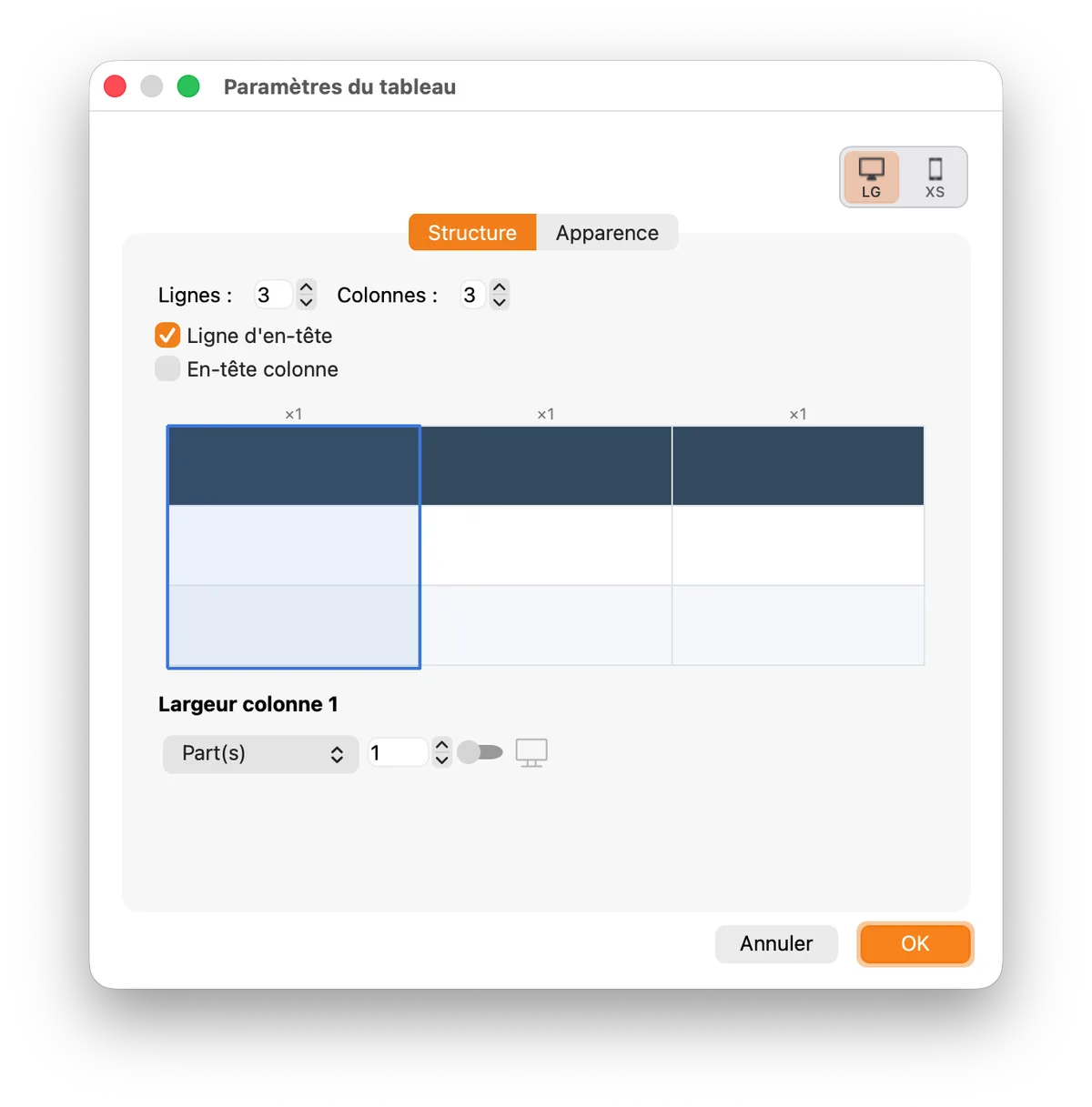
A real Table component, finally
This is a long-awaited feature. Without a dedicated component, creating a table in WebAcappella Fusion previously required tinkering with stacked columns—difficult to maintain, fragile to edit, and subpar on mobile. SP4 introduces a true Table component: cell structure, headers, borders, and responsive behavior that neatly reorganizes content on small screens. Ideal for price lists, comparisons, technical specifications, or schedules—anywhere you had previously given up on presenting structured data.
Three more components to discover
- Redesigned button: separate hover and active states, dynamic colors from the site’s palette.
- Medallions: round image, title, subtitle, and link—perfect for showcasing a team or partners.
- Accordion: content that collapses and expands on click, ideal for FAQs.
A library of ready-to-use sections
SP4 adds a section library directly integrated into the editor. Instead of starting with a blank page, you browse a catalog of complete sections—headers, heroes, presentation blocks, footers—and insert them into your page with a single click. Each template remains fully editable, just like any other content on the page.
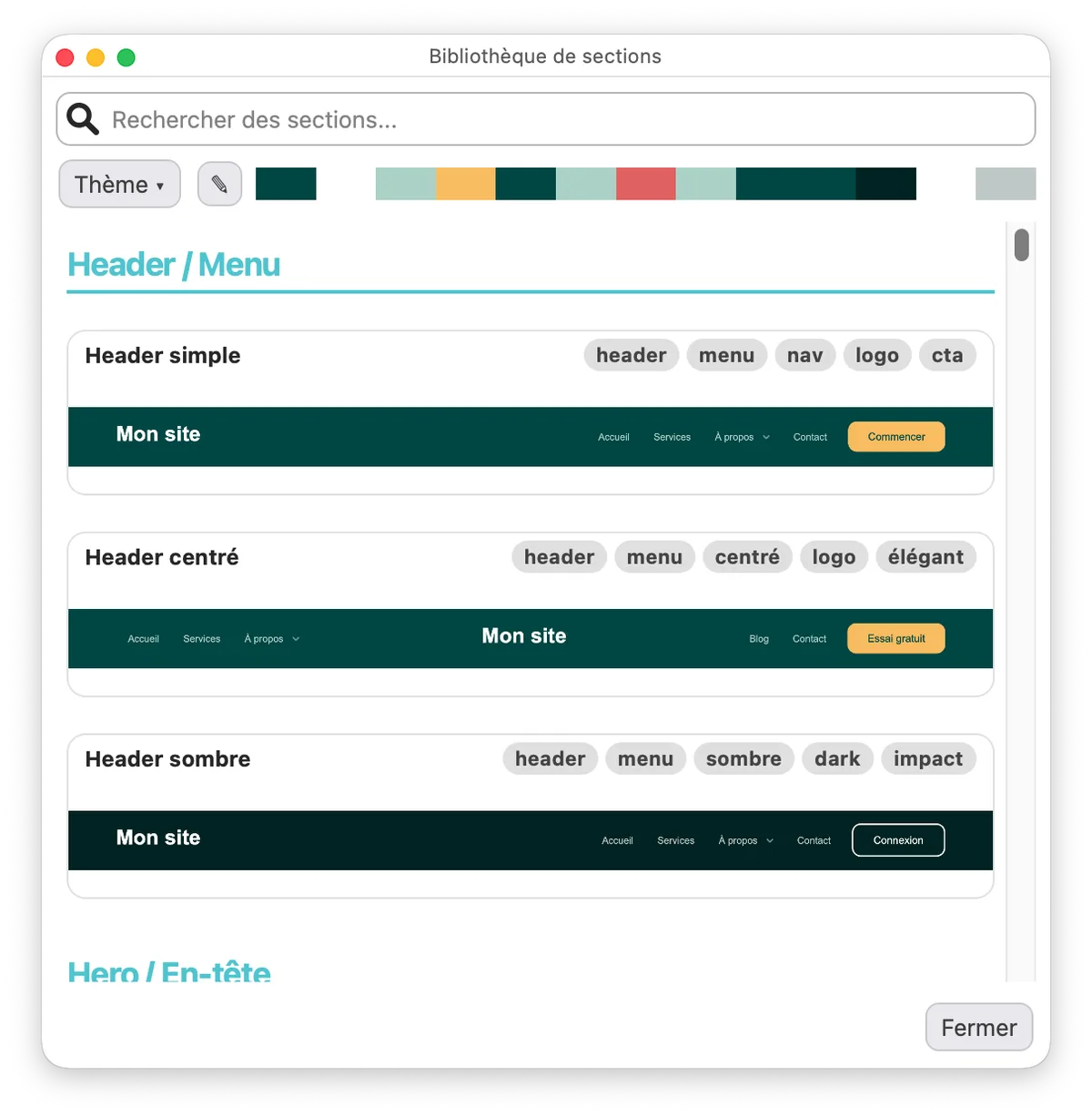
A search bar and filters by theme or color palette help you quickly find the right section. Very useful for getting a project off the ground quickly, or for adding a new section to an existing site without having to build it from scratch.
Search in the asset picker
The resource picker now features a search bar. Type part of an image or file name, and the media library filters instantly. A small addition, but a real time-saver once a project exceeds a few dozen elements.
How to upgrade to SP4
If you’ve just purchased your WebAcappella Fusion license, good news: every new license includes SP4 by default. You already have everything mentioned above.
For an upgrade from a previous version, the price depends on your license (Classic or Pro) and the Service Pack you’re upgrading from—so there’s no single price. The easiest way is to enter your current license on the pricing calculator page: you’ll immediately see the exact cost of your upgrade to SP4.
For reference, a new license costs €99 for the Classic edition and €199 for the Pro edition, including SP4.
Before updating, be sure to back up your projects. WebAcappella Fusion includes a manual restore point system (menu Project > Create Restore Point)—create one before proceeding. And making a backup copy of the project folder never hurts.
Ready to upgrade to SP4?
SP4 unlocks the responsive menu’s historical limitations, gives stores a real promotional tool, and makes graphic finishing accessible without CSS—not to mention the new containers and components. Whether you’re coming from SP3 or an older version, the upgrade is worth it.
Install the update, open a project, and test the new features one by one: it’s by working with them that you’ll see how much time you save.
Find out the cost of upgrading to SP4 by entering your current license.
Find out my SP4 price