SFTP and FTP
Introduction
The File Transfer Protocol (FTP) and its secure alternative (SFTP) are used to send files from your website to a remote server. SFTP is recommended, as it encrypts data and identifiers, guaranteeing greater security.
Publication window
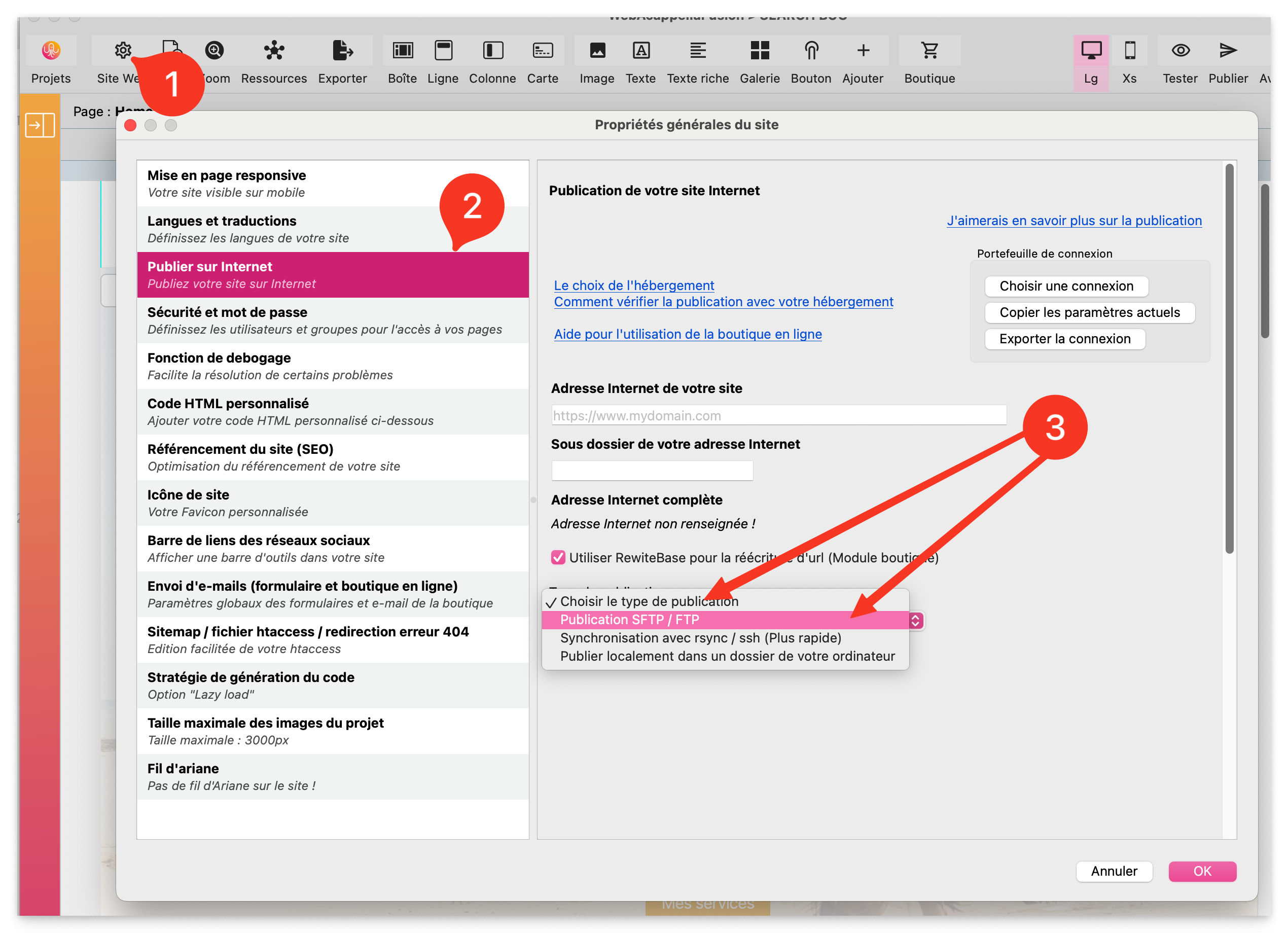
1 - Website (Site properties)
2 - Publishing on the Internet
3 - Choose the publication type and select “SFTP / FTP Publication”
Hosting information
All the information requested from 4 to 8 has been provided by your hosting provider. You can find them by logging on to your hosting provider’s customer area. This information varies from host to host.
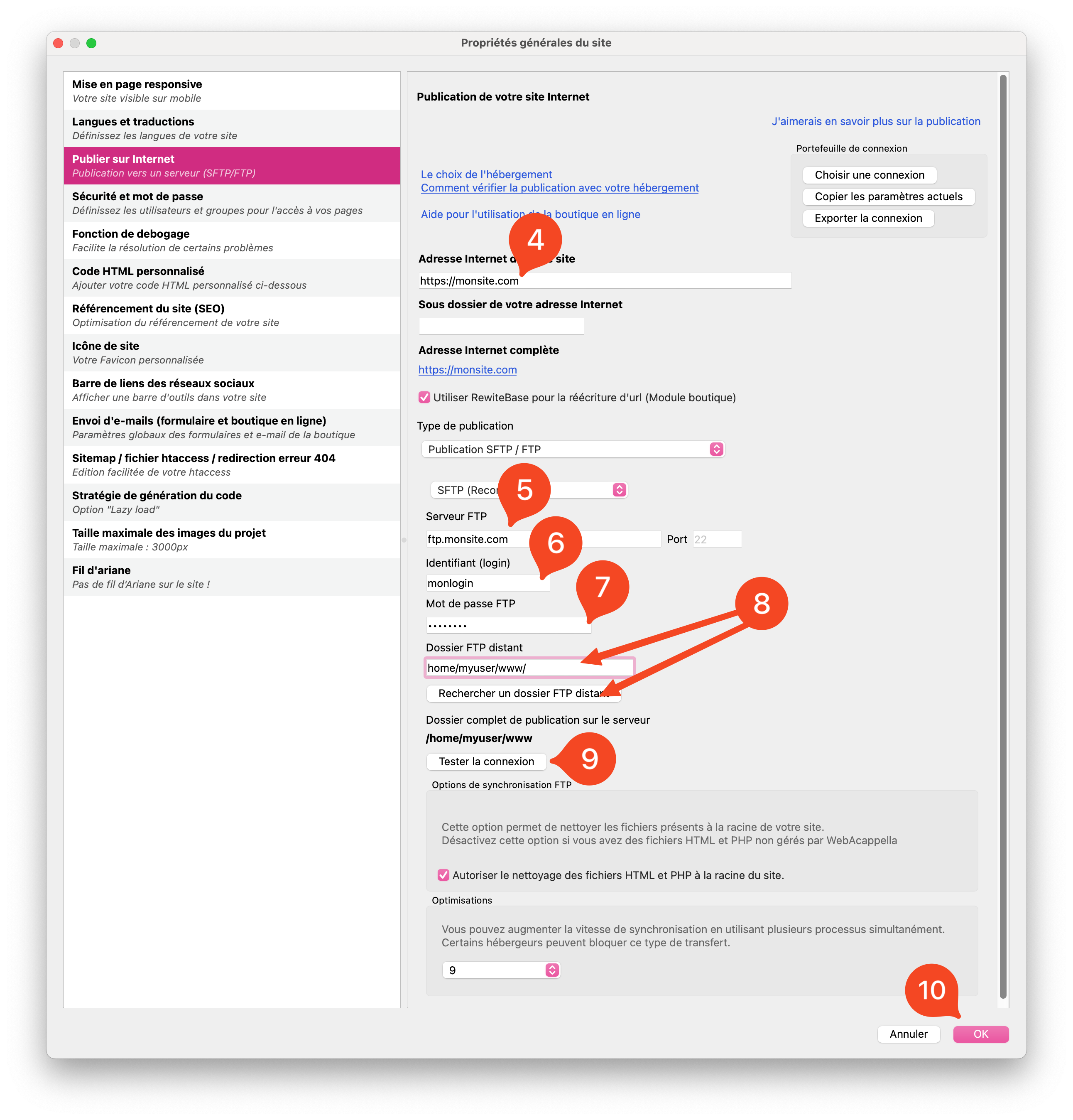
Protocol: Select between FTP and SFTP (preferable for security reasons).
FTP server / Host: Name of the server, which can take the form of ftp.myftpserver.com or an IP address such as 12.34.56.789.
Username / Login: Username required to access FTP.
Mot de passe / Password: Password associated with your login.
Remote FTP folder : Specific directory on the server where your files must be stored to be accessible over the Internet.
The remote FTP folder may vary from host to host. It is essential to place your files in the right folder (e.g. public_html/, www/, htdocs/) to ensure their online visibility.
9 - Testing the connection
10 - Don’t forget to validate by clicking on OK
Common errors and solutions
Connection error: Check your credentials and make sure your chosen protocol is supported by your host.
Access to remote folder denied : Confirm that you have entered the correct directory and that your permissions are correct.
Tip
The SFTP protocol, which encrypts your data and credentials, is increasingly favored for its enhanced security over traditional FTP, which can transmit your password in clear text. We strongly recommend that you choose SFTP when this option is available from your hosting provider.
Error
If you are experiencing transfer problems or other technical difficulties, please consult the technical support page for assistance: